At a time when technology is evolving at a breakneck pace, many users face the official end of life of their operating system, whether it’s Windows or macOS. The expiration date of these systems often marks the end of official updates and security patches, leaving machines exposed to increasing vulnerabilities. However, immediately abandoning a so-called outdated system is not the only solution. There are proven methods to slow down the decline of these platforms, optimize their performance, and ensure their maintenance in secure conditions. In 2025, these tips gain relevance, both for individuals attached to their hardware and for companies keen on managing their IT assets with caution and efficiency.
Optimizing an old system is not just about simple technical advice. It involves a series of precise actions, adapted to the particularities of Windows and macOS, to place the machine in a favorable dynamic for its durability. Several levers can be activated: from software cleanup to manual updates, including the addition of hardware components such as RAM or switching to SSD. These interventions, although simple, require a minimum of rigor to avoid critical errors and maximize the useful life of your computers, often relegated to premature obsolescence against their will.
This article brings together the best recommendations to keep your outdated systems smart, secure, and efficient, while offering pragmatic alternatives, such as using free software or lightweight versions. Our advice is based on innovations available in 2025 and on feedback from users who have been able to extend the life of their machines beyond official deadlines. Let’s explore together these indispensable tips to breathe new life into your Windows and macOS computers without necessarily investing in new hardware.
- 1 The fundamentals of backup to preserve your data on Windows and macOS
- 2 Hardware optimization: adding RAM and switching to SSD to revive your machine
- 3 Clean reinstallation and alternatives to keep your Windows or macOS in excellent condition
- 4 Ensuring security on Windows and macOS out of official support
- 5 Tips for effective software cleanup on outdated Windows and macOS
- 6 The best free software alternatives to replace obsolete programs
- 7 Simple daily maintenance routines to extend the lifespan of your outdated systems
- 8 Comparative table: key tips for maintaining outdated Windows and macOS systems
The fundamentals of backup to preserve your data on Windows and macOS
Before any intervention on an outdated system, backing up data is a crucial step often overlooked by users. Whether you use Windows or macOS, backup ensures that in the face of an unforeseen incident, your computer’s essential information is not lost. In 2025, with the growing volume of personal, professional, and user data files, securing your content becomes a top priority.
A good backup strategy relies on redundancy. Rather than relying on a single USB key or a single external hard drive, it is advisable to multiply backups on different media. Two separate USB keys, two separate hard drives, or a subscription to a reliable cloud storage service are as many barriers against data loss. By including in these backups not only your personal documents but also files related to your applications, such as client messaging databases, you ensure a complete restoration of your environment in case of reinstallation.
Windows has always offered several tools to facilitate these operations. The built-in backup tool called “File History” allows automated backup, while third-party solutions like Macrium Reflect or Acronis True Image provide complete image copies, very useful if you want to migrate or restore a full OS. On macOS, Time Machine remains a benchmark: easy to configure, it automatically performs incremental backups and keeps a version history. By combining local backup and cloud backup (iCloud for example), you ensure effective double protection.
In a professional setting, backup management becomes even more sophisticated. Companies implement 3-2-1 backup policies: three copies of data on two different media, one of them off-site. This method can be well adapted to advanced home use. For example, a user can keep one copy on an external hard drive at home and another on a secure cloud service, in addition to a local copy.
Finally, backup is not a simple one-time action but a process to be integrated into the usage routine. For example, after each major update or before a delicate operation on the computer, taking the time to perform a complete backup is good practice. Without this precaution, it is almost impossible to go back without losses in case of malfunction. This discipline both protects your files and helps you stay calm during optimization or maintenance operations on outdated systems.

Hardware optimization: adding RAM and switching to SSD to revive your machine
Extending the lifespan of an outdated system is not limited to simple software maintenance. Hardware improvement remains a very powerful lever, often underestimated, to restore responsiveness and fluidity to an old Windows or macOS computer. In 2025, these recommendations remain valid, especially as the volume of processed data and software performance demands increase.
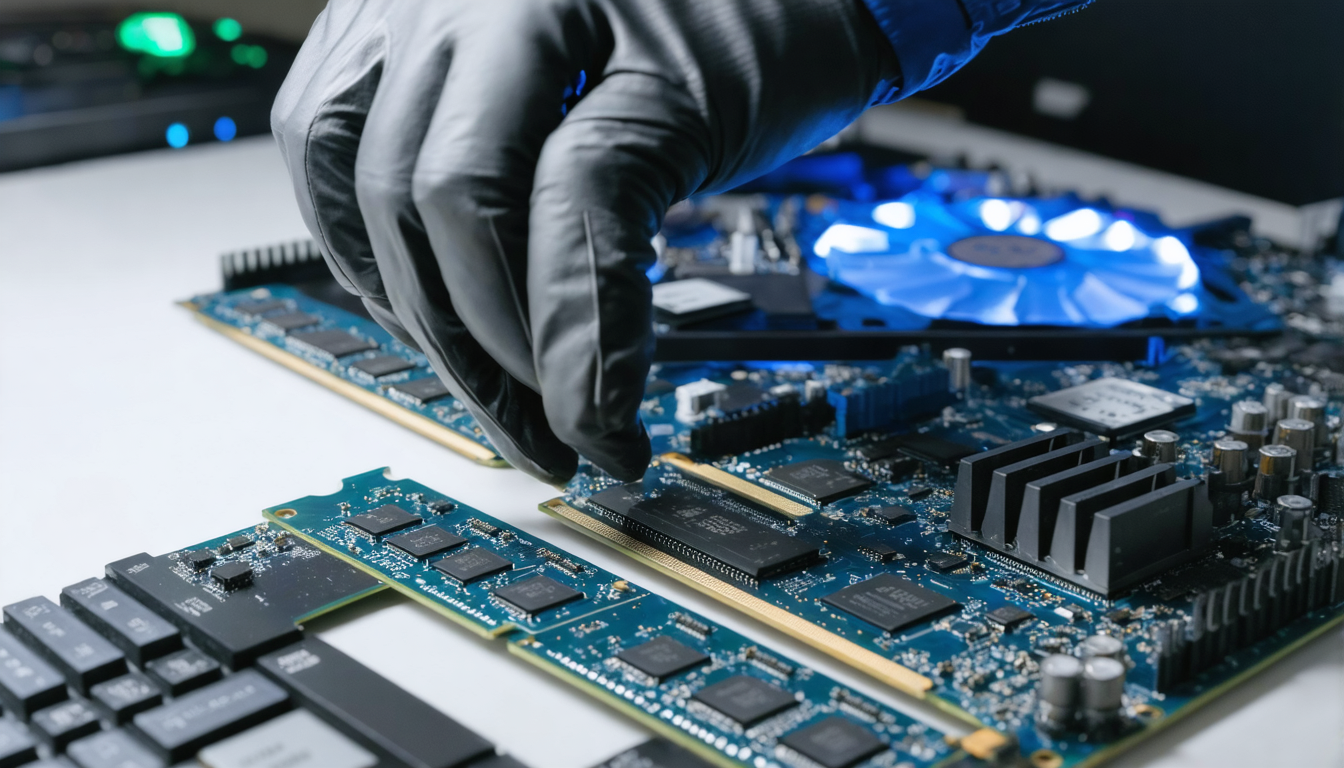
Adding random access memory (RAM) is a fairly accessible and impactful intervention. On an outdated computer, having a limited amount of RAM often results in significant slowdowns as soon as several applications are open. Increasing RAM, even with compatible second-hand modules, allows the system to execute daily tasks more comfortably, whether multitasking or launching resource-intensive programs. For newer Macs compatible with limited updates, checking the possibility of expansion remains a choice to seriously consider.
The transition from a classic mechanical hard drive (HDD) to an SSD is a fundamental step in performance optimization. Unlike traditional hard drives, SSDs offer immediate data access, drastically reducing boot times and application loading times. On outdated systems, this improvement can radically transform the user experience, making Windows and macOS much more agile. Furthermore, power consumption is lower with an SSD, which also extends the battery life on laptops.
Buying a used SSD or RAM is an economical solution to extend the life of your hardware. Many users prefer this route rather than investing in a new machine. Moreover, most tutorials available online in 2025 provide detailed explanations to perform these operations yourself, reducing labor costs.
However, some precautions are necessary. Before purchase, it is crucial to verify the compatibility of components with the brand, exact model, and generation of your machine. On Windows, tools like CPU-Z or Speccy provide precise information about your configuration. On macOS, the “System Information” application contains all necessary details. Installing incompatible RAM or an unrecognized SSD can cause failures or instabilities.
During installation, careful handling is essential to avoid physical damage. Preliminary cleaning inside the machine prevents overheating and malfunctions related to accumulated dust, often responsible for premature wear. By combining these different attentions, your computer will not only have a second youthful life of use but will also gain real longevity, ensuring an excellent return on investment.

Clean reinstallation and alternatives to keep your Windows or macOS in excellent condition
Reinstalling an outdated operating system may seem tedious or risky for some users. However, in 2025, this approach often proves essential to erase accumulated slowdowns, eliminate viruses or unwanted software, and start fresh on solid foundations. The difference lies in how to approach this operation, which differs significantly depending on whether you use Windows or macOS.
For macOS users, Apple greatly simplifies the procedure thanks to the online availability of previous versions. From macOS High Sierra to Tahoe, all editions are accessible for download through Apple’s official website. It is not necessary to have an external bootable USB key or tedious activation. This flexibility facilitates reinstallation even on older machines.
Moreover, projects like OpenCore Legacy Patcher allow going further by installing newer versions of macOS on Macs officially unsupported. Beyond the technical complexity of this manipulation, it opens up an unprecedented optimization field for aging machines. However, stay attentive to precautions indicated by the user community to avoid incompatibilities or data loss.
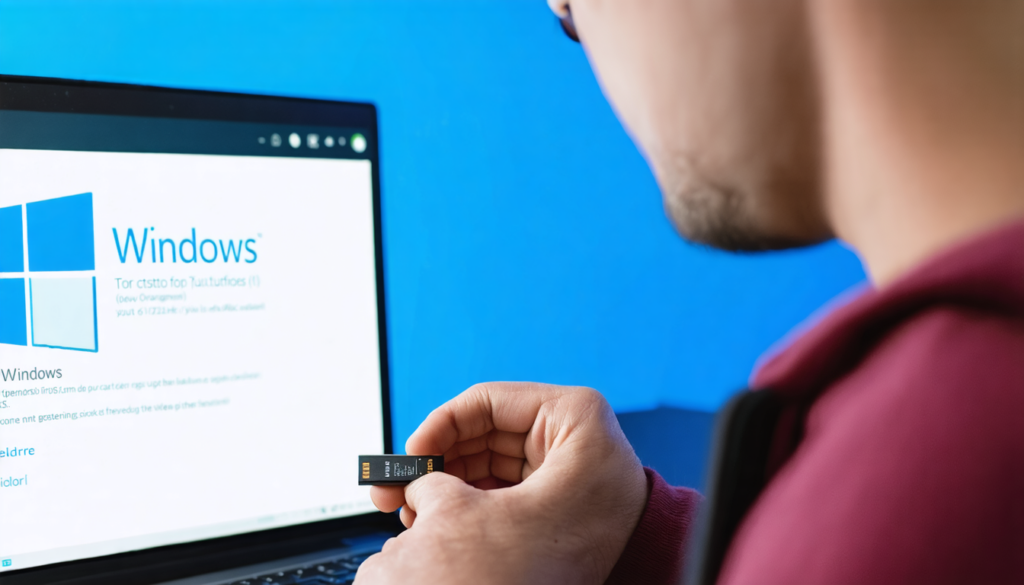
On the Windows side, the situation is a bit more complex, but solutions exist. It is strongly discouraged to use images provided by manufacturers, often cluttered with useless software and potentially harmful to stability. The best option is to download a clean version of Windows directly from Microsoft and create an installation USB key using free tools such as Rufus or Ventoy. These utilities allow preparing a fast, clean, and customizable installation.
Once reinstallation is complete, important work on updating drivers must be done. Snappy Driver Installer Origin is the reference tool to search, download, and automatically install all necessary drivers. The goal is to restore optimal functioning of hardware components and avoid incompatibilities frequently occurring on old machines.
In summary, a clean reinstallation avoids unnecessary slowdowns, software errors, and gives new vigor to your computer. For users wishing to keep their machine beyond official support deadlines, this is the first big step toward durable and reliable use.
Ensuring security on Windows and macOS out of official support
When your Windows or macOS operating system exceeds the official end of support date, security becomes a major issue. Indeed, stopping security updates exposes the computer to potential attacks, without the possibility of correction by the publisher. However, there are ways to limit these risks, especially taking into account the specificities of each system.
On Windows, an interesting alternative is the Windows 10 LTSC (Long-Term Servicing Channel) edition, which continues to receive updates until 2027. This streamlined version does without superfluous software (bloatware) and offers a lightweight interface, focused on the essentials. Highly appreciated in professional contexts, it allows securing a system durably without sacrificing performance.
For those who have experienced Windows 11 but want to revert to a more stable and less demanding version, tools like UpDownTool make the reverse migration to Windows 10 LTSC simple. This gives the machine a more suitable environment, with security patches still active.
On the macOS side, security primarily involves choosing reliable, regularly updated alternative software. Built-in third-party applications (like mail clients or media players) can be replaced by free and maintained open-source software, thus limiting exposure to vulnerabilities. Likewise, avoiding risky connections or suspicious downloads remains a reflex not to be neglected.
Regular maintenance also takes the form of system monitoring, with built-in or third-party tools that alert in case of suspicious behaviors. Caution should guide users both when installing new software and managing network access. Moreover, configuring systems to limit unnecessary services significantly improves security while lightening the load on the computer.
In short, mastering security on outdated systems is possible by combining updating strategic components, the rational use of third-party software, and adopting responsible digital behaviors. Continuous vigilance becomes the number one weapon to fully enjoy your Windows or macOS in 2025 without suffering from the impact of the official end of support.
Tips for effective software cleanup on outdated Windows and macOS
An old system often suffers from sluggishness caused by the accumulation of unnecessary temporary files, obsolete caches, and dormant programs that consume resources in vain. Software maintenance is therefore a key step to improve performance and extend the lifespan of your machine, no matter the OS.
On Windows, several native solutions are available. The “Disk Cleanup” tool remains a simple and effective way to free up space by deleting temporary files, error logs, and old Windows Update backups. To go further, O&O AppBuster is recommended to properly uninstall preinstalled and unused applications, reducing system load. The O&O ShutUp application offers fine control over Windows privacy settings and telemetry, thus helping lighten the system.
However, it is recommended to avoid unrecognized third-party cleaners that promise miracles. Many can, on the contrary, weaken your system by inappropriate deletions.
On macOS, simplicity reigns. Rigorous sorting of applications, deleting unused extensions and files, and resetting system caches often suffice to restore a more fluid machine. Using tools like OnyX, regularly updated, allows these operations to be performed safely.
In addition to cleanup, managing startup programs plays a crucial role. Many programs launched in the background slow down the computer from startup. On Windows, the task manager provides a simple way to control their activation. On macOS, the “Users & Groups” preference allows disabling superfluous login items. This step greatly contributes to reducing startup times and better resource allocation.
By regularly maintaining the software and keeping an uncluttered environment, outdated systems retain their responsiveness and efficiency. This proactive maintenance also minimizes the risk of errors related to software overload.
The best free software alternatives to replace obsolete programs
Some software integrated into outdated systems can become security loopholes, especially if they require an Internet connection and no longer receive updates. The recommendation in 2025 is clear: replace these programs with free or actively maintained alternatives.
On Windows, this approach not only secures your environment but also lightens the system. For example, for email, Thunderbird, an open-source mail client, is regularly updated and offers solid security. For multimedia playback, VLC remains an essential player, capable of playing almost all formats without needing additional codecs. For web browsing, Firefox or Brave provide regular updates and better privacy compared to the no longer maintained Internet Explorer.
On macOS, these alternatives are also accessible and often compatible. The LibreOffice suite is a free solution to replace Microsoft Office, while alternative browsers allow staying up to date without sacrificing ease of use. The macOS community has developed specialized tools for this system, ensuring good integration and performance.
Here is a non-exhaustive list of relevant alternatives to install on an outdated system:
- Mail client: Thunderbird
- Media player: VLC
- Office suite: LibreOffice
- Web browser: Firefox or Brave
- Light antivirus: ClamAV (Linux and macOS)
- Password manager: Bitwarden
By adopting these alternatives, the user ensures not only an increased security level but also longer compatibility with outdated platforms. Not neglecting this factor helps extend the life of Windows and macOS well beyond their traditional support cycles.
Simple daily maintenance routines to extend the lifespan of your outdated systems
Beyond technical and hardware recommendations, the longevity of your Windows and macOS systems largely depends on the habits you establish daily. Cultivating a good maintenance routine prevents premature degradation and maintains optimal performance.
First, regularly updating software and drivers is essential. Even an outdated system sometimes benefits from new versions of certain third-party software. Installing these updates improves security and fixes bugs. Verifying the proper functioning of drivers through reliable tools ensures that hardware components communicate correctly with the OS.
Periodic cleanup of the hard drive, for example via the native “Disk Cleanup” tool on Windows, limits clutter. On macOS, regularly deleting caches and temporary files is recommended. Furthermore, checking the disk using CHKDSK (Windows) or the First Aid features of Disk Utility (macOS) helps identify and repair potential integrity errors on the media.
Scheduling these steps at regular intervals (every 3 to 6 months) prevents problems from accumulating and making the machine more vulnerable. Moreover, avoiding unsecured downloads as well as unnecessary installations helps preserve the stable environment of the computer.
Practically, here is an indicative list of actions to include in your routine:
- Regular and multiple backups of your personal data
- Cleaning of temporary and unnecessary files
- Driver check and update
- Monitoring installed software and uninstalling unnecessary ones
- Regular disk health check using native tools
- Installing security updates for still supported software
By adopting these simple actions, you ensure that your Windows or macOS maintains a good level of performance and security, and that its lifespan naturally extends without heavy investments.
Comparative table: key tips for maintaining outdated Windows and macOS systems
| Category | Windows | macOS | Key Benefits |
|---|---|---|---|
| Backup | File History, third-party solutions (Macrium) | Time Machine, cloud storage (iCloud) | Maximum data protection |
| Hardware optimization | RAM addition and SSD upgrade, hardware diagnostic tools | Possible RAM extension, Apple native SSD or compatible replacements | Significant gain in responsiveness and fluidity |
| Reinstallation | Clean Windows image, USB key creation with Rufus/Ventoy | Download macOS versions, OpenCore Legacy Patcher | Performant and secure system resynchronization |
| Security | Windows 10 LTSC, UpDownTool for rollback, free alternatives | Open source applications, limiting unnecessary services | Reduction of cyberattack risks |
| Cleanup | O&O AppBuster, native Disk Cleanup, O&O ShutUp | OnyX, manual removal, application sorting | Resource freeing and increased speed |
| Free software alternatives | Thunderbird, VLC, Firefox, LibreOffice | Thunderbird, VLC, Firefox, LibreOffice | Maintaining security and compatibility |
| Daily maintenance | Driver updates, regular cleanup, multiple backups | Application updates, periodic cleanup, disk checks | Extended lifespan and stability |