
In the digital age, Google has established itself as an essential player in everyday life. However, a large portion of users neglect crucial settings that ensure their security and privacy. This lack of knowledge exposes them to avoidable risks while diminishing the quality of the experience offered by the Google ecosystem. From managing personal data to customizing services to protecting against ad tracking, these often overlooked settings deserve special attention. With the increasing sophistication of algorithms and the proliferation of connected devices, mastering these settings is an essential step for any internet user concerned with taking back control of their digital life.
Far from being limited to a simple search engine, the Google universe includes a wide range of tools, such as Google Photos, Google Maps, and YouTube, which interact with our data at every moment. Each service accumulates information that can be finely managed thanks to the appropriate settings. These features, although powerful, can become double-edged swords without proper customization. This dossier aims to reveal these often forgotten yet essential tips and settings to strengthen your Google account security, protect your privacy, and optimize your user experience across all platforms bearing the Mountain View company’s signature.
- 1 Block ad tracking in Google settings: a key move for privacy
- 2 Enable auto-deletion of activity: easily protect your data
- 3 Stop sharing location history: protect your physical privacy
- 4 Disable automatic diagnostics sending: avoid unwanted transfers and protect battery life
- 5 Clean third-party apps connected to your Google account: a security step not to be overlooked
- 6 Optimize Google Photos to avoid free storage saturation
- 7 Enable safe browsing and enhanced protection in Google Chrome
- 8 Disable personal search results to preserve discretion in public
- 9 Configure digital legacy: anticipate managing your Google account after passing
- 10 Block Google login pop-ups: improve navigation fluidity
Block ad tracking in Google settings: a key move for privacy
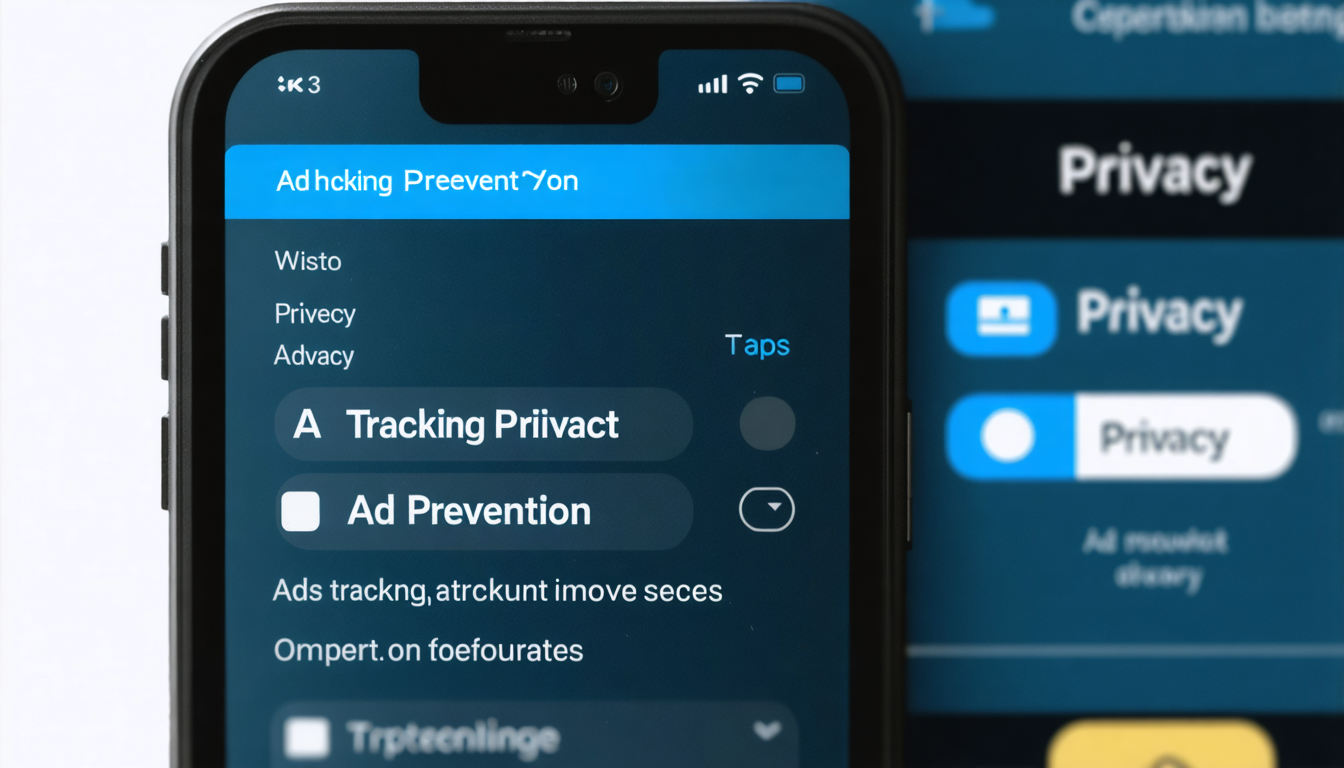
Most users are unaware that a real advertising profile is dedicated to them by Google, based on their shopping habits, searches, and browsing. This profile enables targeted advertising but also raises significant privacy concerns. In the data and privacy settings, Google nevertheless offers the possibility to limit these tracking practices. By disabling this tracking, the user reduces the collection and use of their personal data by advertisers.
Accessing the “Data & privacy” tab allows you to see the categories in which Google automatically classifies you, such as your supposed interests, your age, or your location. For maximum control, it is recommended to visit this dedicated page to disable ad personalization. This means that Google will no longer link your queries or browsing behaviors to your advertising identity, thus limiting behavioral targeting and improving your online anonymity.
For example, a user who disables this setting will see less intrusive ads, no longer based on a detailed profile. This change can also reduce risks related to data leaks or hacking, since less information is stored and shared with third parties. Even if some ads remain displayed, they will then be less personalized but generally more respectful of your privacy.
This protection is especially important in a context where authorities and non-governmental organizations are increasing their alerts about massive tracking by online platforms. Making this small adjustment in your Google settings thus protects you from incessant tracking and contributes to a calmer and less intrusive browsing experience.
Enable auto-deletion of activity: easily protect your data
It is common for users to let their web and app history accumulate over years without paying attention, amassing a mountain of metadata. By default, Google keeps these traces indefinitely unless the user intervenes. In response, a now essential feature offers automatic deletion of data after a customizable period, often recommended at three months.
This setting, accessible from your personal Google dashboard, acts on both your web activity and activity within apps linked to your account. By automatically reducing the retention period, this system lightens the accumulation of unnecessary information in the long term and limits risks related to theft of old data.
Automatic deletion also affects videos watched on YouTube, preventing Google from keeping an indefinite record of your past interests, which could bias recommendations or expose certain personal preferences. This periodic cleanup happens without any required action, encouraging regular digital hygiene.
A concrete example is that of people working in sensitive sectors or simply wanting to limit their digital footprint. By enabling this automatic deletion, they benefit from better privacy while maintaining their account’s performance and the relevance of the services offered. This measure has become highly recommended in all contexts, strengthening the foundation of your digital security.
Stop sharing location history: protect your physical privacy
Each movement made with your smartphone equipped with Google Maps is potentially recorded in a precise history thanks to integrated GPS systems. This history can be viewed and managed through your Google account settings to avoid misuse or the creation of an overly revealing geographic timeline.
Disabling this feature is crucial to preserving your physical privacy because an active location history allows Google to accurately map your daily habits. This continuous geolocation, if left enabled, can provide third parties with information about your routes, usual places, and even private appointments.
Google has nevertheless strengthened the security around these data by introducing full encryption to prevent any access by unauthorized persons, including employees. Despite this, it is often preferable to disable tracking to limit exposure and maintain control over your coordinates.
To disable location sharing in Google Maps on mobile:
- Open the Google Maps application.
- Tap your profile picture, then select “Your Timeline.”
- Go to “Settings and privacy.”
- Manage locally stored data by disabling location history.
This practice has the advantage of preserving real-time navigation functionality while preventing the creation of geographic files. Additionally, it reduces exposure to potential leaks or abuses, now a major issue as digital surveillance intensifies in 2026.
Disable automatic diagnostics sending: avoid unwanted transfers and protect battery life
Smartphones equipped with Google services regularly send diagnostic reports in the background to the company’s servers. These transmissions often occur without recent explicit authorization, which can seem intrusive and unnecessarily consume battery and mobile data.
To stop this flow, you must access Google settings on your smartphone, click on the “three dots” menu, then on “Usage & diagnostics.” Then simply turn off the dedicated switch to stop these invisible transmissions.
By cutting off this feature, beyond enhanced privacy protection, you also help extend your battery life and save your data plan. Furthermore, the absence of these reports prevents Google from continuously analyzing your user behavior, limiting the collection of intrusive data.
This measure is especially valuable in countries where the mobile network remains slow or unstable. Several users report a noticeable improvement in their device’s responsiveness after applying this setting, demonstrating the growing usefulness of this discreet yet powerful optimization.
List of benefits of disabling automatic diagnostics sending:
- Reduced battery consumption by limiting background processes.
- Mobile data savings, particularly useful when roaming or on limited plans.
- Improved privacy thanks to reduced data collection.
- Optimized smartphone performance by reducing processor load.
- Greater control over which information is sent to Google.
Clean third-party apps connected to your Google account: a security step not to be overlooked
Many online services are regularly connected to your Google account to allow single sign-on. However, these third parties sometimes retain prolonged access to your data even after use or service abandonment. This issue is known to cause major risks of personal information leaks.
Google makes it easy to manage these connections via the “Security” section of your account. By regularly checking this list and revoking permissions that are no longer justified, the user reduces the attack surface and prevents unauthorized access to their emails, contacts, or other sensitive files.
Each app or site must be audited to ensure it does not have unjustified access. For example, an old platform used for a subscription or a temporary service should be removed to avoid unnecessary risks. This active vigilance is a key step in the comprehensive protection of your personal data.
Optimize Google Photos to avoid free storage saturation
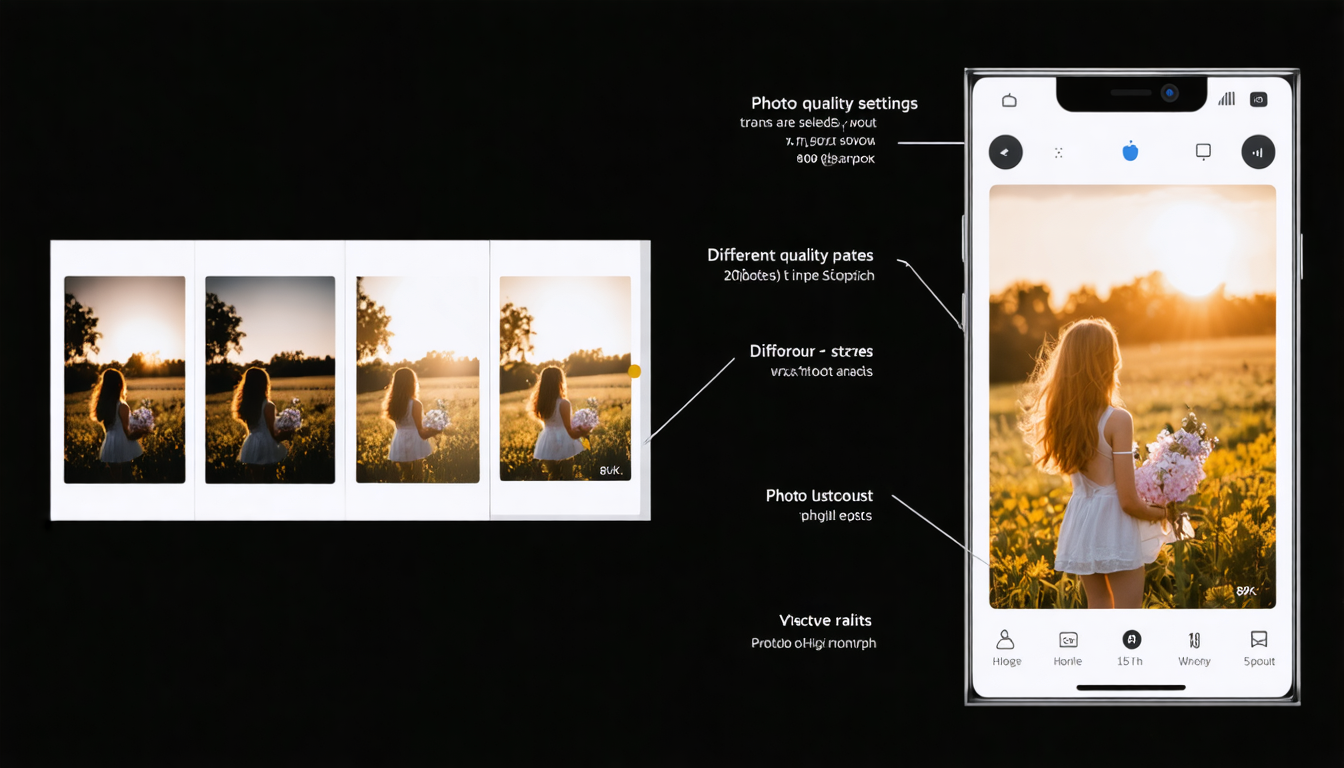
As time goes by, many users face rapid saturation of their Google Photos storage space, especially if photos are saved in high resolution. This situation often forces subscribing to a paid plan to gain more capacity.
To bypass this issue, Google offers a “storage saver” mode in the settings that compresses images to significantly reduce their weight without noticeably altering visual quality. This compromise allows you to continue saving all your precious images while maintaining a longer extended free quota.
This feature is highly appreciated by families or photography enthusiasts who regularly take large photos on their smartphones. It is directly accessible from the backup and sync menu of Google Photos on mobile, making it easy to activate and deactivate according to needs.
Here is a comparison table of backup modes in Google Photos:
| Backup mode | Image quality | Space consumption | Main advantage |
|---|---|---|---|
| Original high quality | Uncompressed images | Very high | Perfect preservation of details |
| Storage saver | Light compression | Reduced by 20 to 40% | More images stored for free |
| Express quality | Strongly compressed | Very low | Ideal for fast sharing without quality worries |
Enable safe browsing and enhanced protection in Google Chrome
In a context where cyberattacks are increasingly frequent, Google has integrated a feature called “safe browsing” into its Chrome browser to protect users in real time. This setting, accessible via chrome://settings/security, offers two levels of protection, including an enhanced one designed for increased vigilance against online threats.
This function analyzes visited sites, downloaded files, and installed extensions to anticipate phishing attacks, malware, or fraudulent sites. In case of danger detection, Chrome immediately warns the user, thus limiting the risk of compromising personal data.
Implementing this enhanced protection is recommended for all users, especially those handling sensitive information or working in exposed professional environments. Additionally, this extra layer significantly improves browsing peace of mind, often overlooked in favor of speed.
Disable personal search results to preserve discretion in public
Google Search includes a specific display that groups personal information such as emails, appointments, or bookings directly in the results. This behavior, while convenient, can create awkward situations, especially when using the search engine in public or professional contexts.
To avoid this exposure, a simple setting allows disabling this robust feature in Google search-specific settings. This measure fully compartmentalizes your privacy, preventing your schedule or personal information from being visible inadvertently around you.
This feature is often unknown but proves very useful for those who share their computer or browse in public spaces. Removing personal results contributes to a more neutral and secure experience, aligned with current expectations for web privacy.
Configure digital legacy: anticipate managing your Google account after passing
Very few users think about preparing their digital afterlife, yet Google offers a tool called “Inactive Account Manager,” allowing you to designate a trusted contact to transmit certain data in case of prolonged inactivity. This function guarantees the secure and supervised delivery of your important data such as photos, emails, or documents.
Within this framework, you can set a delay (usually between three and six months) of absence before the manager is automatically alerted. This device prevents your accounts from remaining unattended indefinitely and ensures that only information previously approved is accessible to your loved ones.
Driven by Google teams led by Sundar Pichai, this feature represents a major advance in controlling your privacy that extends beyond your own use. It is a responsible approach, combining personal security and respect for digital wishes.
Google login pop-up windows are often perceived as a widespread nuisance on many portals. They regularly prompt you to sign in, which can become repetitive or even intrusive during a simple visit. To regain peaceful navigation, it is helpful to disable this feature in account settings under the Security section.
By doing so, users effectively stop these pop-ups and reduce unnecessary solicitations while browsing third-party sites. This also helps to avoid excessive expansion of their digital identity online, especially on platforms where Google authentication is not essential.
Besides comfort benefits, this setting reduces the risk of automatic data collection linked to repeated sign-ins on various portals, thus reinforcing control and confidentiality of your internet presence.